
When ORO POS 1.6.x is launched for the first time, it shows the Please activate OROPOS to continue dialog. This guide walks through every activation method available.
How to choose your activation method
Follow the chart to find the right tab in the activation dialog.
| ORO POS opens — activation dialog appears | ||||||||||
| ↓ | ||||||||||
| Does this terminal have internet access? | ||||||||||
| No ↙ | ↘ Yes | |||||||||
|
No Internet
1. Click Copy next to Terminal Key
2. On any internet device, go to shop.orocube.com 3. Log in → paste Terminal Key → download .lic file4. Transfer .lic to this terminal (USB etc.)5. Click Offline activation tab → browse to file
Offline activation tab
|
Do you have your order number?
|
|||||||||
| ↓ ↓ ↓ | ||||||||||
| ✓ Activated — restart ORO POS | ||||||||||
| ↓ | ||||||||||
| Current license Info tab shows your license details | ||||||||||
The Terminal Key
At the top of the dialog you will see a Terminal Key — a unique identifier tied to this machine. You will need it for offline activation.
| Keep this key handy. Click Copy to copy it to your clipboard. If you are activating offline, you will paste it into your account on shop.orocube.com. |
Activation Methods
The dialog has four tabs. Choose the one that matches your situation:
| Tab | When to use |
|---|---|
| Activate by order no. | You have your order number from your purchase confirmation email |
| Activate by login | Terminal has internet — log in with your shop.orocube.com account |
| Offline activation | Terminal has no internet — use Terminal Key + license file from the website |
| Current license Info | View your active license details after activation |
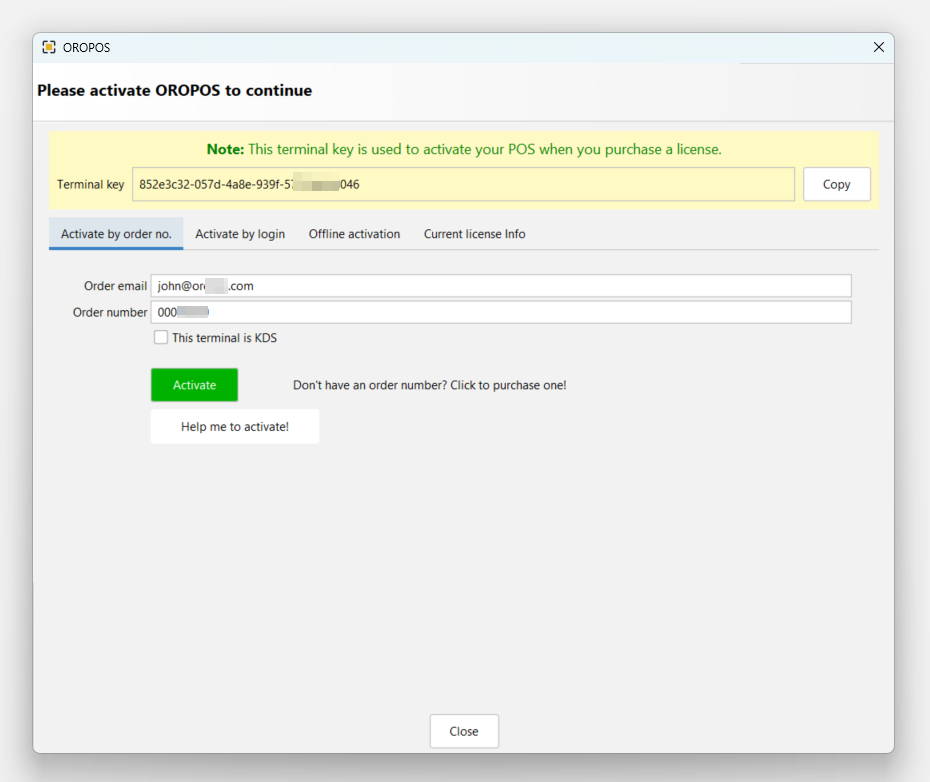
Method 1 — Activate by Order Number
Use this if you received an order number in your purchase confirmation email.
- Click the Activate by order no. tab.
- Enter the Order email — the email address used when purchasing.
- Enter your Order number.
- If this terminal is a Kitchen Display Screen, tick This terminal is KDS.
- Click the green Activate button.
- Restart ORO POS when prompted — the Current license Info tab will show your license details.
| ℹ No order number? Click "Don't have an order number? Click to purchase one!" to open the ORO POS store, or email helpdesk@orocube.net. |
Method 2 — Activate by Login
The fastest method if your terminal has an internet connection. Use your shop.orocube.com account credentials.
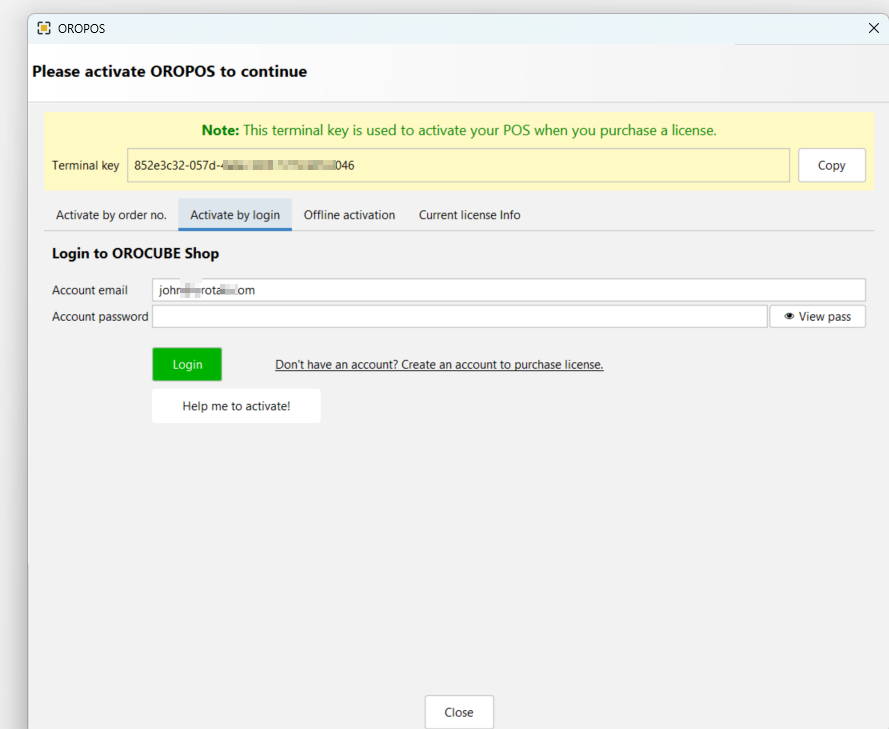
- Click the Activate by login tab.
- Enter your Account email and Account password for shop.orocube.com.
- Click the green Login button — ORO POS will fetch and apply your license automatically.
- Restart ORO POS when prompted.
| ✅ Recommended method — login activation links directly to your account and automatically assigns the license to this terminal. No order number required. |
| ℹ No account yet? Click "Don't have an account? Create an account to purchase license." to register on shop.orocube.com. |
Method 3 — Offline Activation
Use this when the POS terminal has no internet access. You will complete part of the process on a separate device (phone or another computer).
-
Copy the Terminal Key
In the activation dialog, click Copy next to the Terminal Key field. -
Go to shop.orocube.com on any internet-connected device
Log in to your account, find your order, and paste the Terminal Key into the activation field. -
Download the license file
The site will generate a.licfile — download it and transfer it to the POS terminal (USB drive, shared folder, etc.). -
Apply the license file in ORO POS
Back on the POS terminal, click the Offline activation tab, browse to the.licfile, and confirm. -
Restart ORO POS
The Current license Info tab will confirm the license is active.
After Activation — Current License Info
Once activated and ORO POS is restarted, open the activation dialog again and click the Current license Info tab. You will see a License Information panel with all details for this terminal.
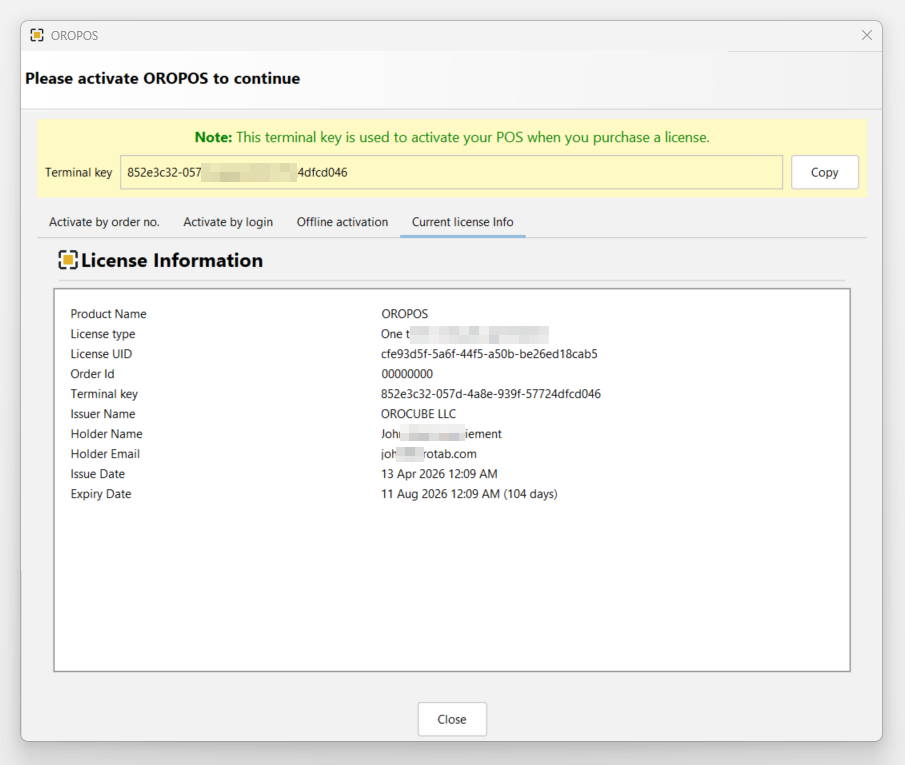
What each field means
| Field | What it shows |
|---|---|
| Product Name | OROPOS — confirms the license is for this product |
| License type | e.g. One terminal — the type of license purchased |
| License UID | Unique identifier for this license — useful when contacting support |
| Order Id | The order number from your purchase |
| Terminal key | The unique key for this machine — must match the Terminal Key shown at the top of the dialog |
| Issuer Name | OROCUBE LLC — the license issuer |
| Holder Name / Email | The registered account holder from shop.orocube.com |
| Issue Date | When this license was activated |
| Expiry Date | When the license expires — shown with days remaining e.g. (104 days) |
| ⚠ License is per terminal. Each POS terminal requires its own license. If you add a new terminal, repeat the activation process on that machine using the same account. |
Subscription renewal
If your license is on a subscription plan, it renews automatically before the expiry date. After a renewal is processed:
- The Expiry Date in the Current license Info tab will update to the new date.
- Restart ORO POS to apply the renewed license — the POS must reload its license file on startup.
- If the expiry date has not updated after a restart, try re-activating using Activate by login with your shop.orocube.com credentials.
| ℹ Tip: Check the Current license Info tab periodically to keep track of your expiry date. If renewal is due within 14 days, you will see a reminder when ORO POS starts. |
Troubleshooting
| Problem | Fix |
|---|---|
| Activation fails — "invalid credentials" | Double-check your email is in lowercase and matches your shop.orocube.com account exactly. |
| Activation fails — "cannot connect" | Ensure port 443 (HTTPS) is open on the terminal's firewall. Try the offline activation method instead. |
| .lic file not accepted | The license file is tied to the Terminal Key. Make sure you pasted the correct Terminal Key from this machine when generating the file. |
| Dialog reappears after restart | Activation did not complete. Check the Current license Info tab for any error message, or email helpdesk. |
Need help activating? Click "Help me to activate!" in the dialog, or email helpdesk@orocube.net with your Terminal Key and order details.